How it works

Create benchmarks, compare models, rank results.
Prompt:

1. Add prompts

You provide the prompts that each model will generate images for. There are two prompt types:

Text-to-image

Enter a plain text description of what should be generated. This is the simplest way to create a benchmark set.

Image-to-image

Add a text prompt plus a reference image. Models will use both as input. Click the image icon next to a prompt to attach the reference image. When any prompt includes an image, only models that support image input will be available for that eval.

Bulk upload

For larger benchmark sets, use Upload prompts to add many prompts at once. Two formats are supported:

Text file (.txt)

One prompt per line. Download example

a cat sitting on a windowsill at sunset
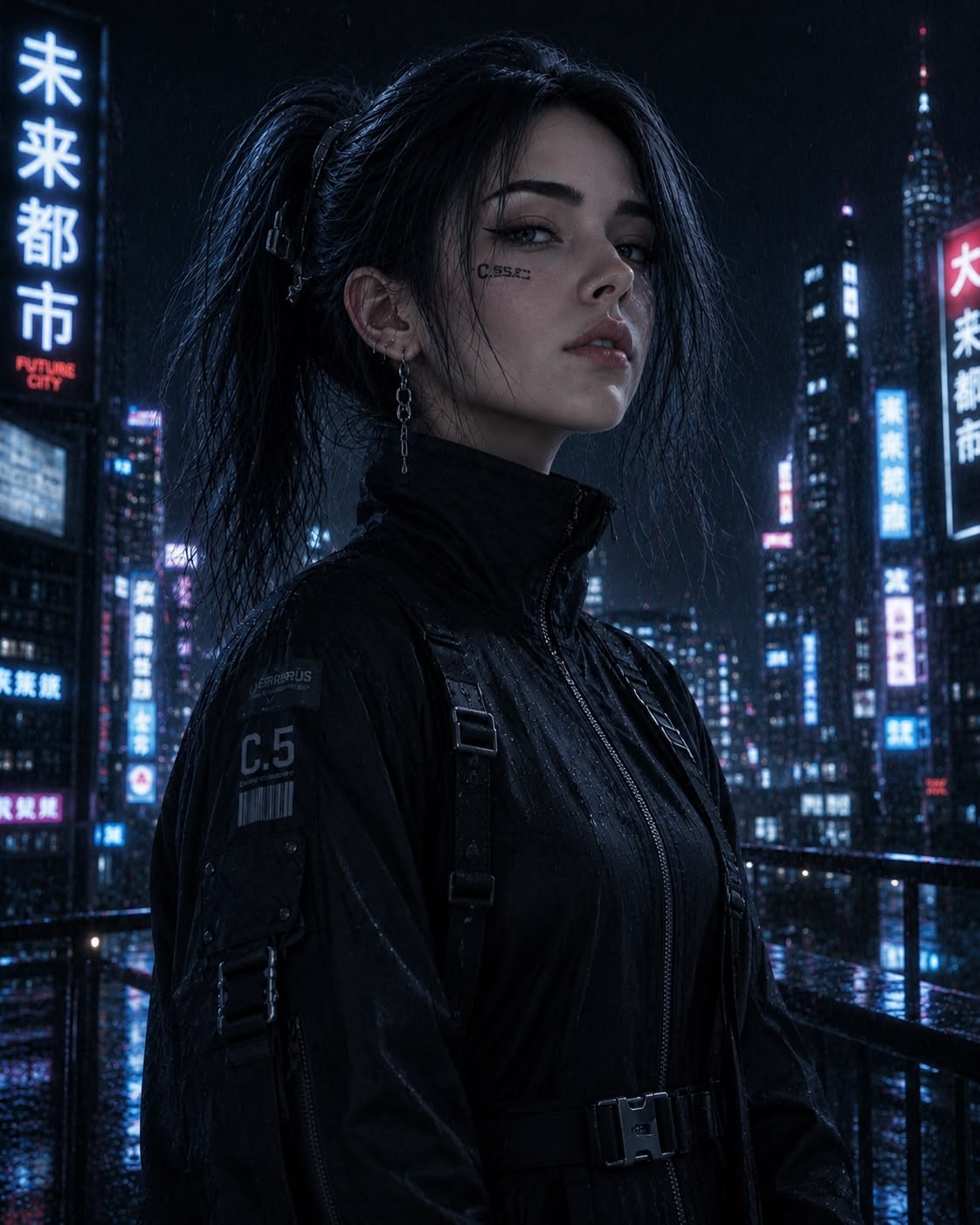
a futuristic city skyline at night
a bowl of ramen, overhead shot, studio lighting

CSV + ZIP

Upload a CSV with a prompt column, an optional image column that references files inside a companion ZIP archive, and an optional question column for per-prompt custom questions. Prompts without an image are treated as text-to-image.

prompt,image,question
put a really cool hat on this llama,llama.jpg,Which hat looks best on this llama?
a neon-lit ramen shop on a rainy Tokyo street,,
redesign this logo in art deco style,logo.png,Which redesign best captures art deco style?

The ZIP would contain llama.jpg and logo.png. Images must be PNG, JPEG, or WebP, max 10 MB each.

Custom evaluation questions

By default, raters see a question such as “Select the image you prefer as a completion of the prompt: ‘a cat sitting on a windowsill’”. You can customize that in two ways:

  • Pick a question preset in the Evaluation step — prompt adherence, image quality, aesthetics, or realism — or choose Custom… and write your own. Use {prompt} as a placeholder and it will be replaced with the prompt text.
  • Set a per-prompt question through the CSV question column, which overrides the eval-wide question for that prompt.

If your custom question does not include {prompt}, the prompt text will not appear in the question shown to raters.

2. Generate images

Choose the image generation models you want to compare. T2I Eval generates an image from each selected model for each prompt in your set — or several per model/prompt pair, via the Images per model per prompt setting in the Evaluation step.

3. Run side-by-side comparisons

Once generation is complete, raters are shown two images at a time from the same prompt, with each image produced by a different model. They pick the one they prefer.

This is a two-alternative forced choice (2AFC) study: raters must choose one of the two images, with no skip and no tie option. That makes the results easier to aggregate consistently across prompts and model pairs.

Raters compare two model outputs for the same prompt and choose the stronger result.

4. Analyze the results

After the pairwise votes are collected, we analyze the results with the Bradley–Terry model and convert the outcomes into Elo ratings for each model.

The result is a clearer ranking of which models perform best on your prompts, plus confidence intervals so you can judge how stable those rankings are.

Everything is downloadable from the results page: every individual rating as CSV, the full results payload (config, Elo scores, and raw rating data) as JSON, and the generated images as a ZIP.